Short answer
Create a goal widget in Streamlabs (All Widgets › Follower Goal or Sub Goal) or add a goal widget to a StreamElements overlay, set the target and starting amount, save, and add the widget or overlay URL to OBS as a Browser source above your game.
Step by step
Choose the goal
Pick one thing to count: followers, subscribers, bits or tips. A follower goal suits new channels; a sub goal suits Affiliates and Partners. Keep the target reachable within a few streams so the bar visibly moves.
Streamlabs: create the goal
On streamlabs.com, open All Widgets and choose Follower Goal or Sub Goal. Set the title, goal amount, starting amount and end date, choose the platform if asked, and click Save Settings.
StreamElements: add a goal widget
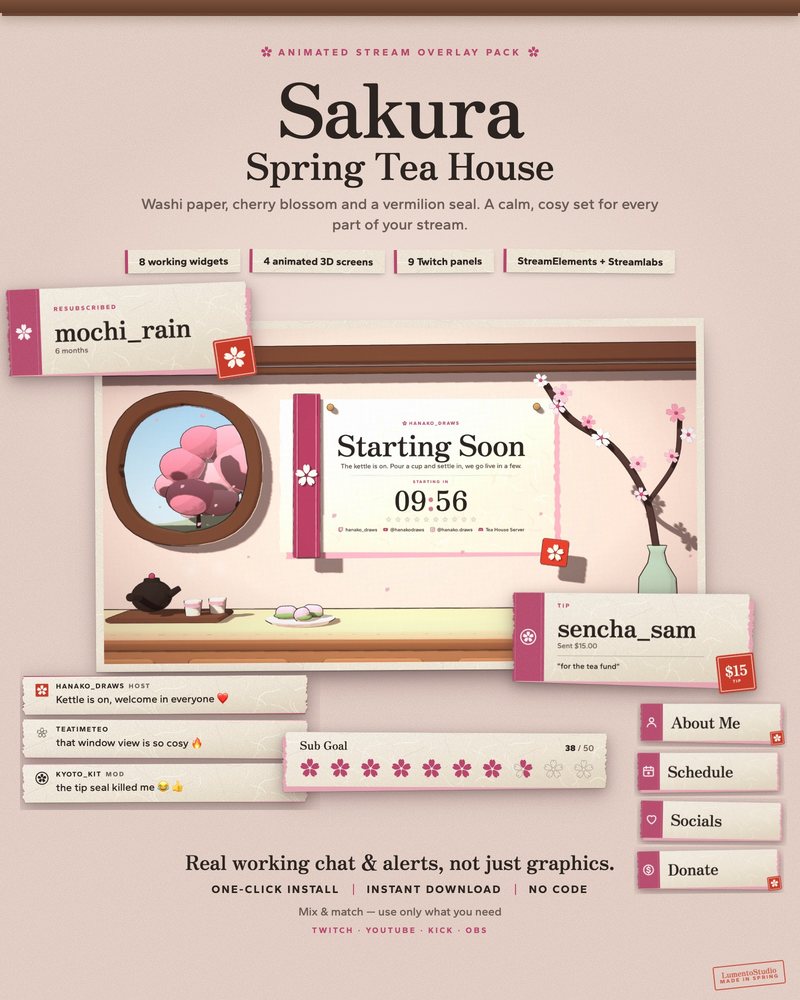
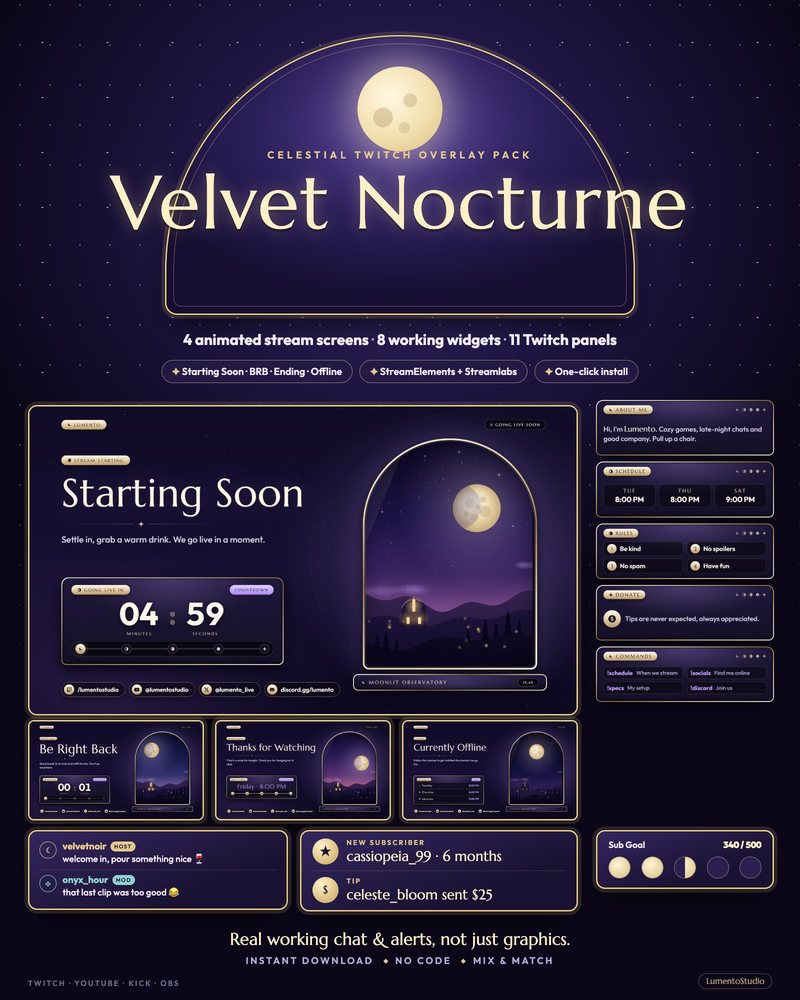
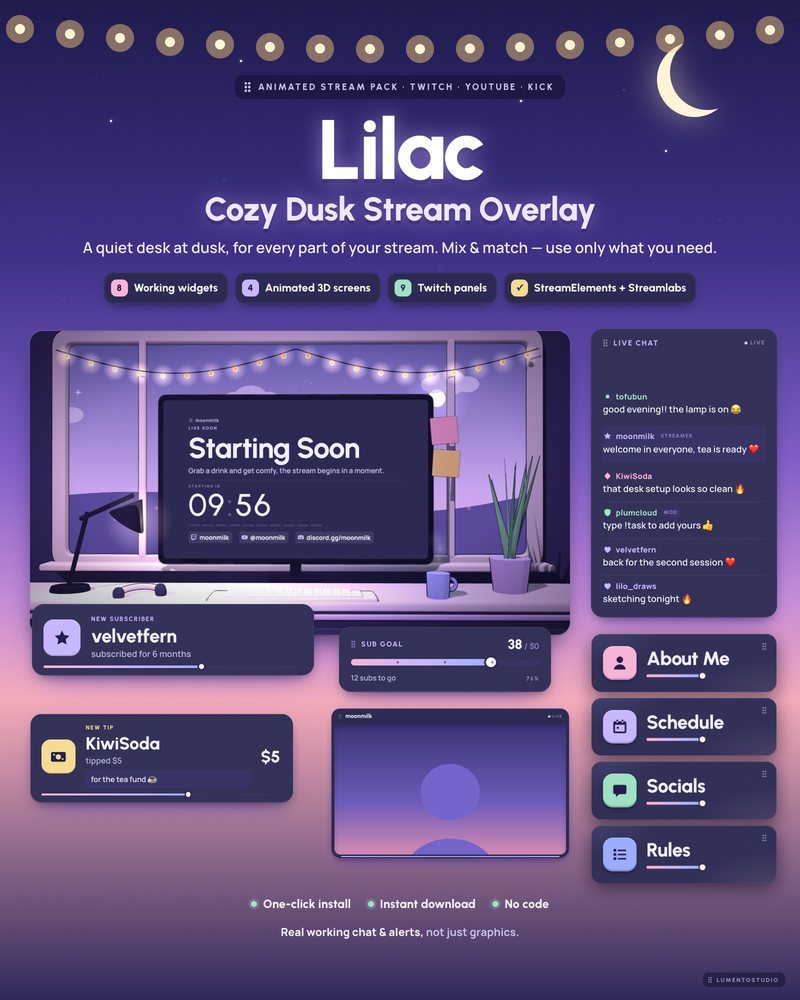
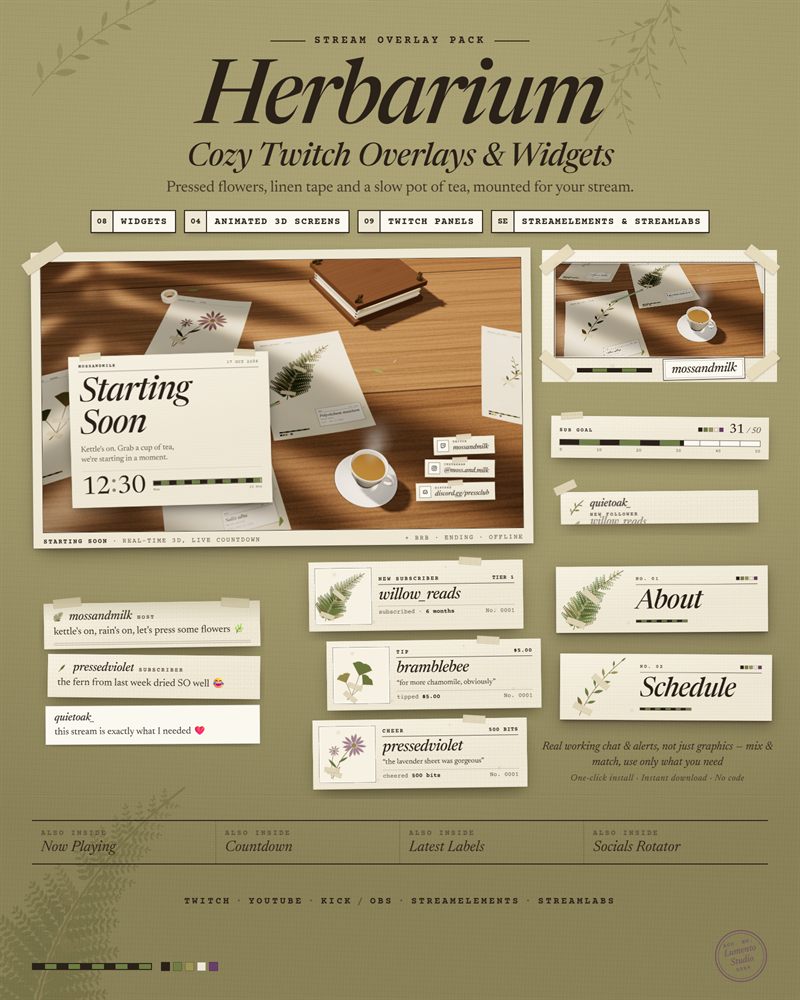
Open your overlay in Streaming tools › My overlays, add the goal widget for what you want to count, set the target and click Save. Goal bars from a pack install already sit inside the pack's overlay.
Copy the URL
Streamlabs: copy the goal's Widget URL. StreamElements: copy the overlay URL with the link icon.
Add it to OBS
In the Sources panel, click +, choose Browser, give it a name and click OK. Paste the URL. Use 1920×1080 for a StreamElements overlay; for a single Streamlabs goal, a wide, short size such as 800×200 is a good start. Move it where it won't cover your game's HUD.
Make the goal readable
- Use a short title such as "Sub goal" or "Road to 500". Long sentences don't fit a bar.
- Show the number as "312 / 500" so people don't have to judge the bar's length.
- Start from your real current count. A bar that starts at zero after a reset looks like nobody supports you.
Multiple platforms
Streamlabs' follower goal can count Twitch, YouTube, Facebook and Kick. To show a separate goal for each platform, Streamlabs suggests one widget theme per platform, each added as its own browser source.
Want a free one?
The Bookshelf Goal is a free follower goal bar: every new follower slides a book onto a shelf. Every LumentoStudio overlay pack also includes a designed Goal Bar.