Guide · 5 steps
How to add a pomodoro timer to your stream
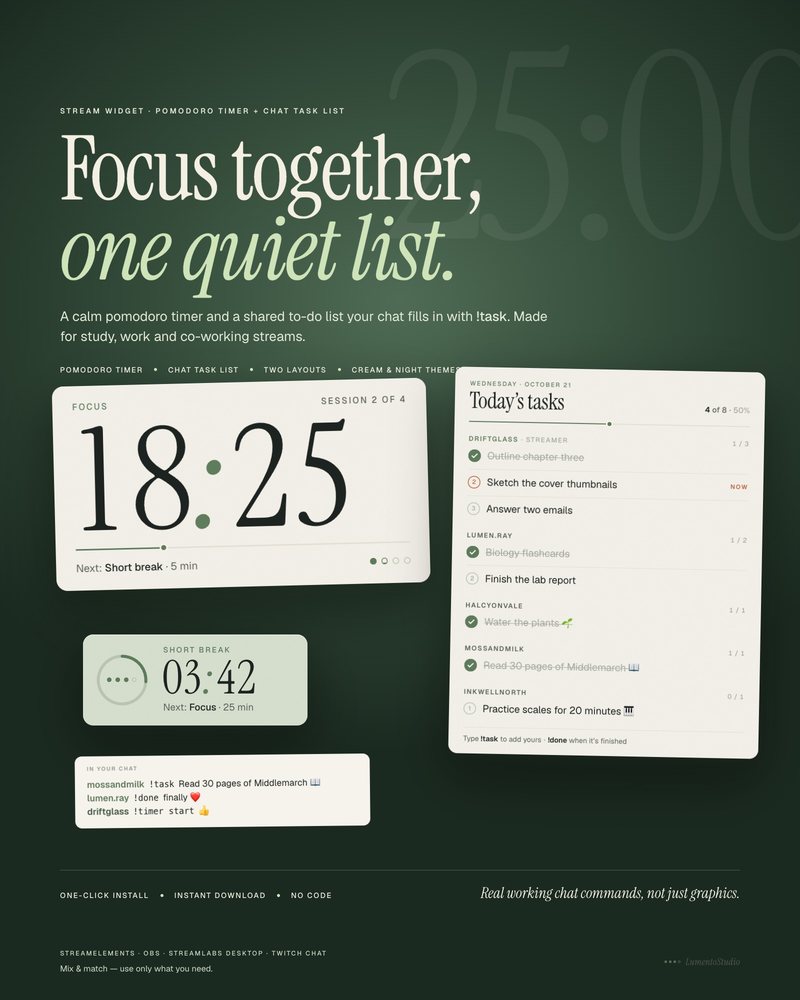
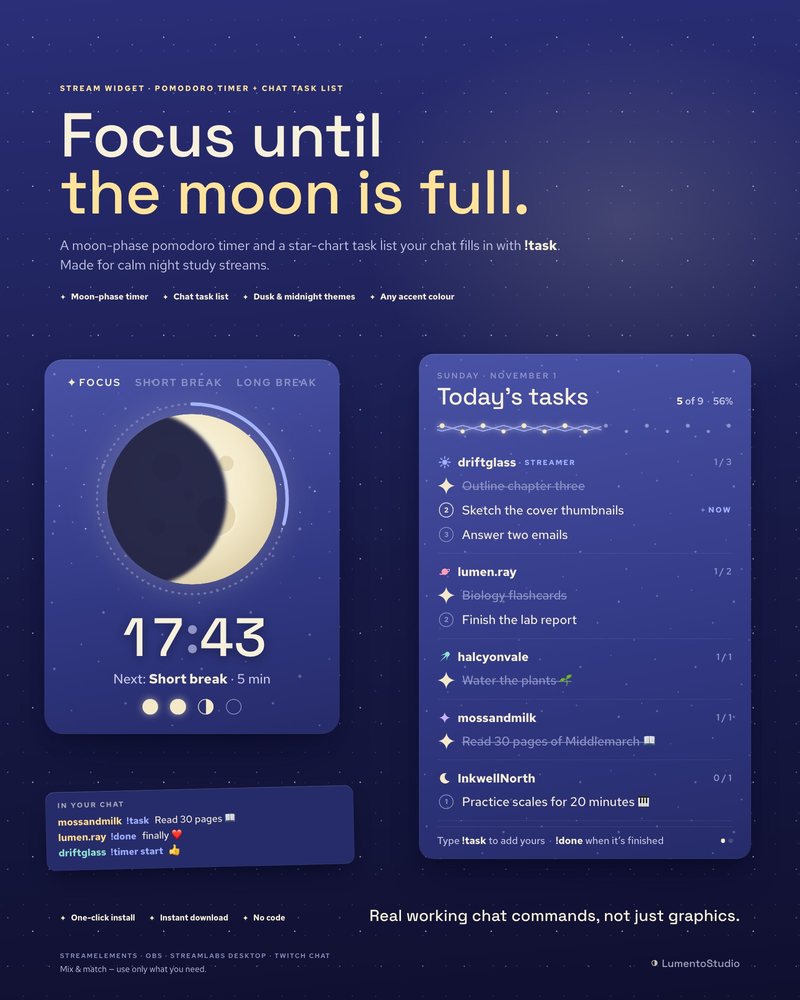
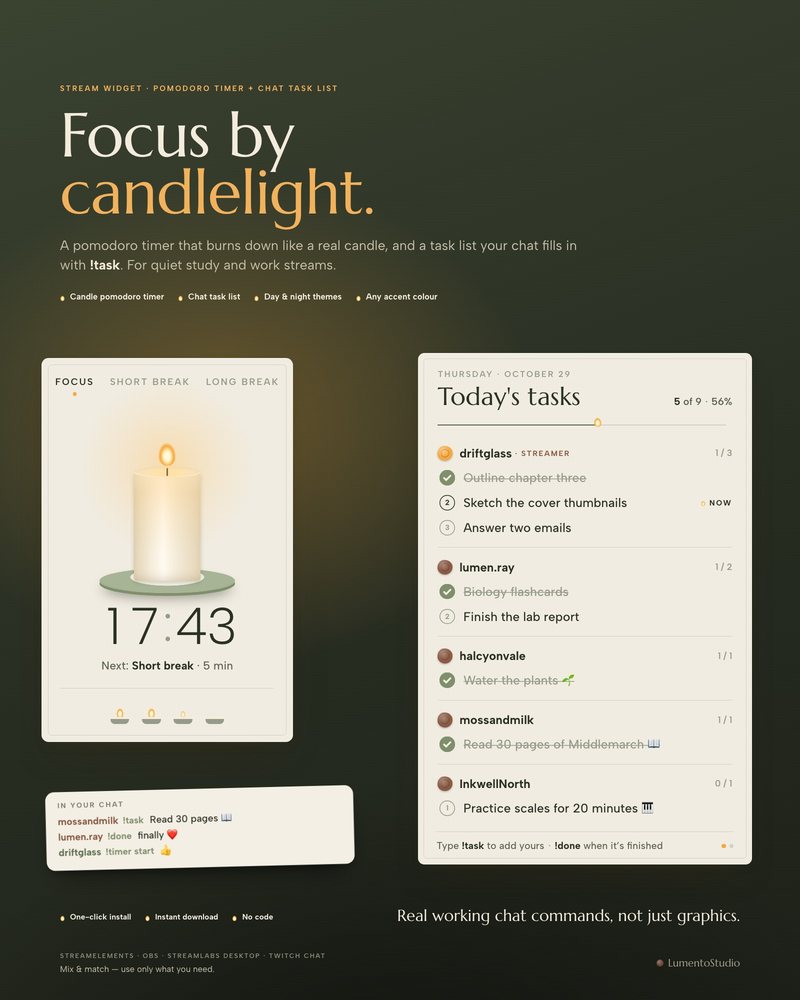
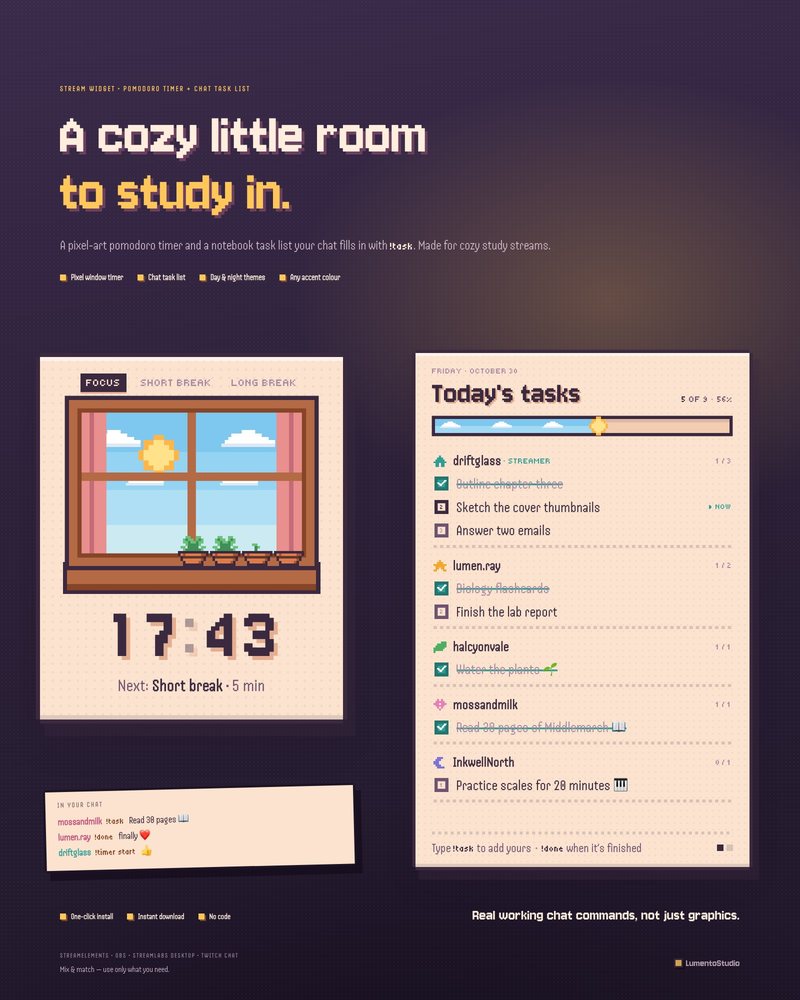
A pomodoro timer gives a study or co-working stream its rhythm: everyone focuses together, then takes a break together. On stream, it should be big enough to read at a glance and controllable without leaving your work.
Short answer
Install a pomodoro widget with its StreamElements link or add its HTML file to OBS as a Browser source. Set the focus and break lengths (25 and 5 minutes is the classic start), then start, pause and skip it from chat with a command such as !timer start.
Pomodoro lengths that work on stream
| Style | Focus | Short break | Long break |
|---|---|---|---|
| Classic | 25 min | 5 min | 15 to 30 min, after 4 focus sessions |
| Longer focus | 50 min | 10 min | 20 to 30 min, after 2 or 3 sessions |
Shorter sessions suit chatty streams, because breaks come often. Longer ones suit quiet, deep-work streams. Pick one and keep it the same every stream so regulars know the rhythm.
Step by step
Pick how to install it
Most stream pomodoro widgets come two ways: a StreamElements install link, or HTML files you add to OBS directly. StreamElements is quickest; the file version works without a StreamElements account.
StreamElements version
Open the install link while signed in to StreamElements, approve it, and the timer appears in Streaming tools › My overlays. Copy the overlay URL with the link icon.
Add it to OBS
In the Sources panel, click +, choose Browser, give it a name and click OK. Paste the overlay URL (or tick Local file and pick the timer's HTML file) and set the size given in the widget's guide.
Set your lengths
Change the focus, short break and long break lengths, and how many focus sessions come before a long break. In StreamElements these are in the widget settings; file versions usually have a settings file you open in Notepad.
Run it from chat
Use the timer's chat commands so you never have to alt-tab. Our timers use !timer start, !timer pause, !timer skip, !timer reset and !timer add 5, for you and your mods.
Add a task list
The timer is half of a study stream. The other half is a task list your viewers can join: each person adds their own goal with !task and ticks it off with !done. It turns lurkers into participants. Our pomodoro widgets include one; see the study-with-me setup guide for the full layout.
Tips
- Put the timer where it stays visible on every scene, or copy it into each scene with Paste (Reference).
- A soft chime at the end of each phase helps people who are listening, not watching.
- Turn off Shutdown source when not visible on the timer's browser source if you switch scenes during a session, so the page isn't unloaded.