Short answer
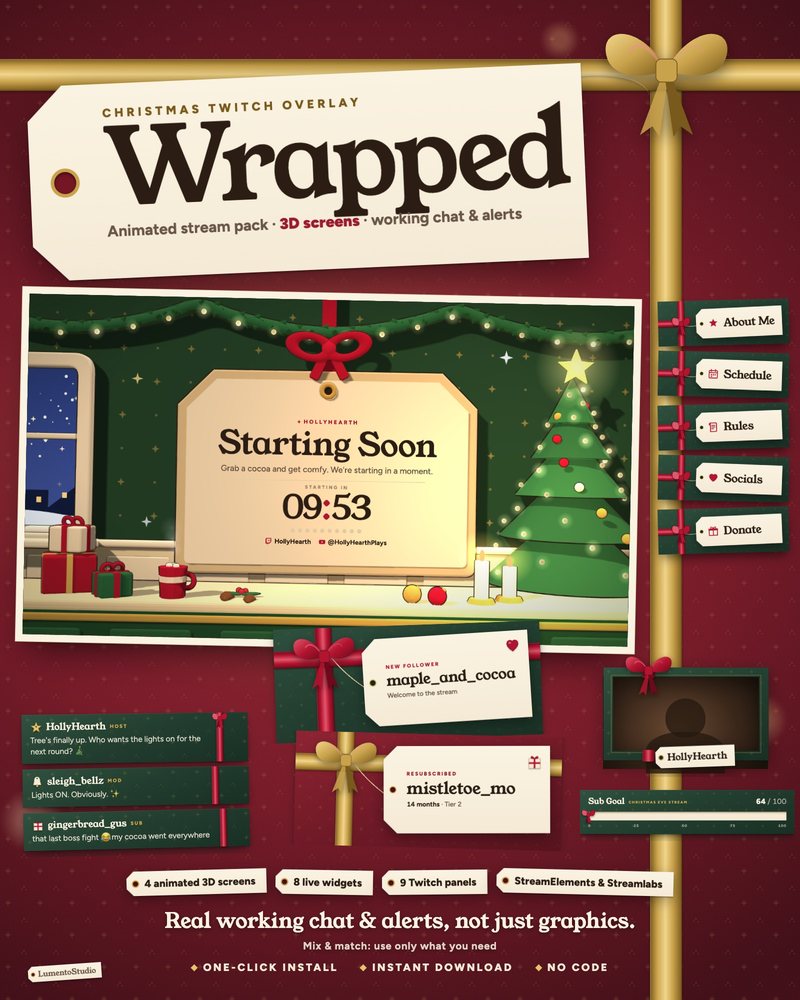
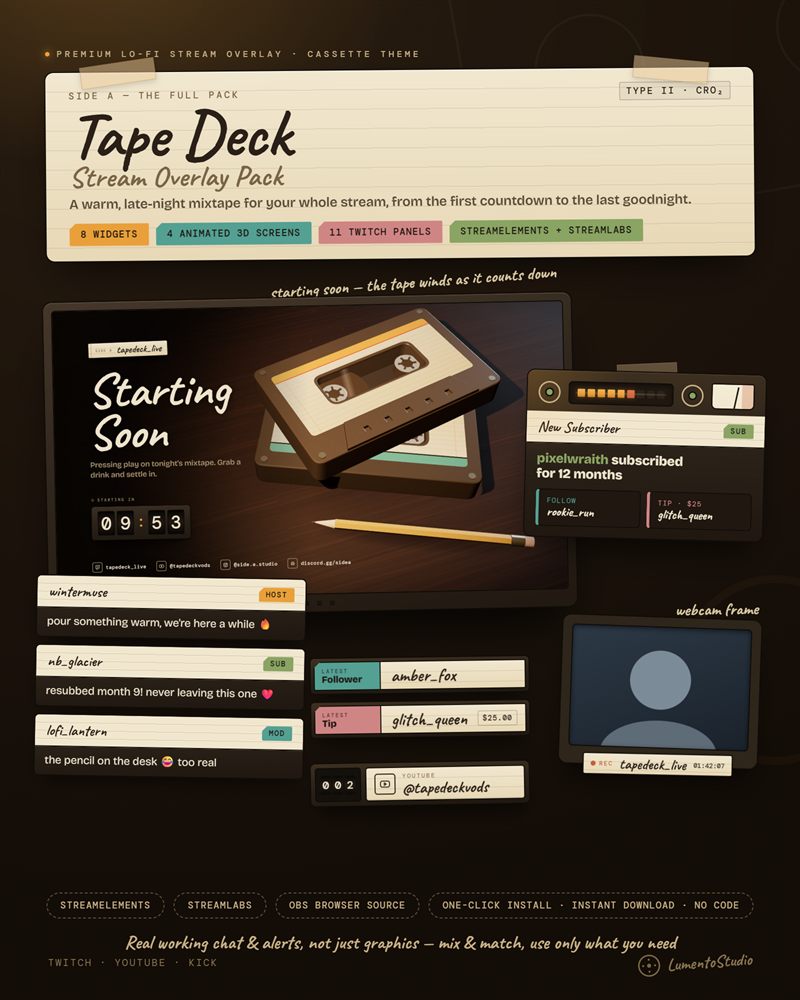
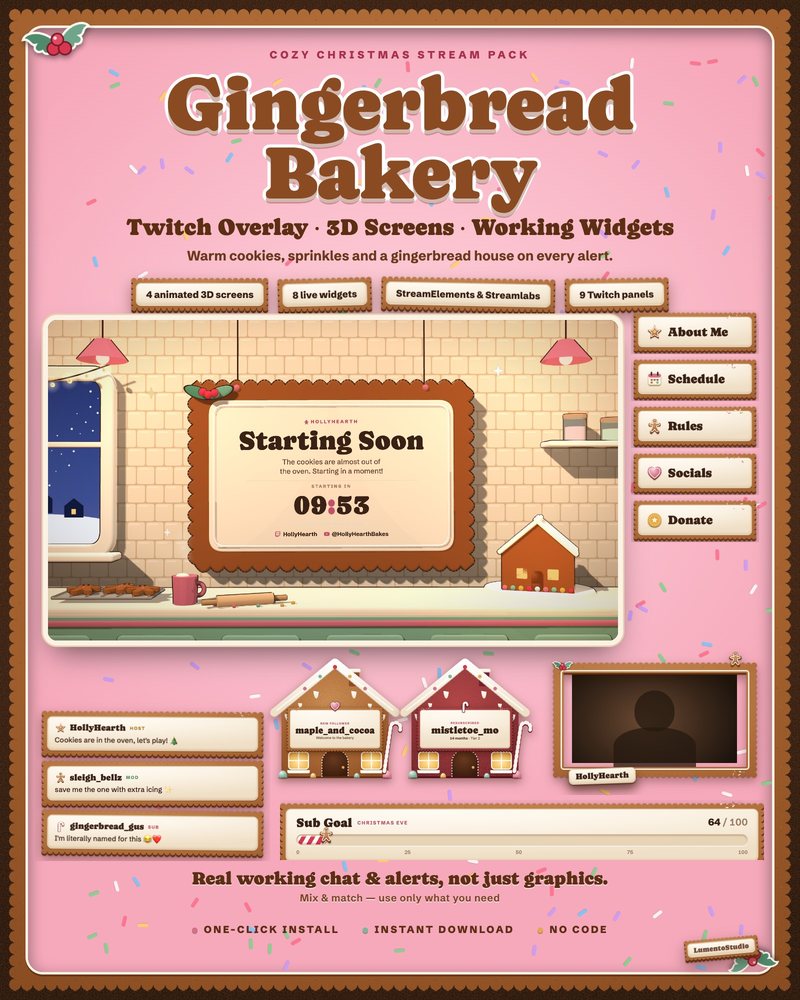
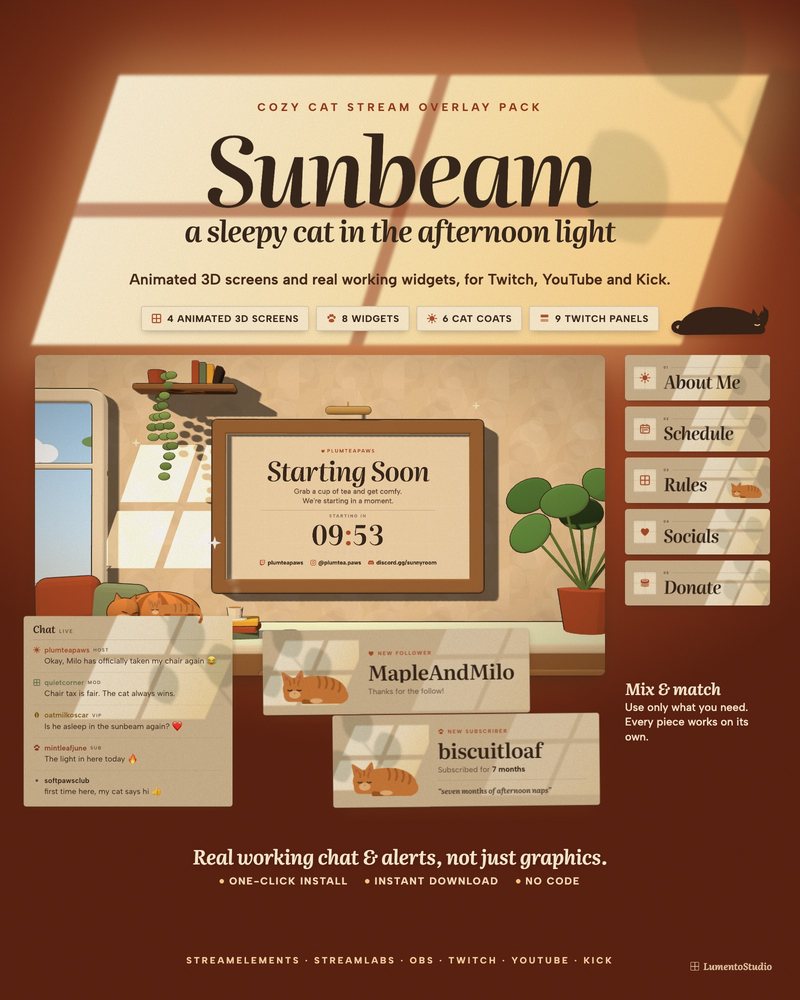
Create a scene called Starting Soon, add your screen as a Browser Source (tick Local file if it's an HTML file) or a Media Source (if it's a video), set it to 1920×1080, and switch to that scene when you go live.
Step by step
Create a Starting Soon scene
In the Scenes panel, click + and name the scene Starting Soon. Keeping it separate means you can switch to your main scene with one click.
Add the screen as a source
In the Sources panel, click +, choose Browser, give it a name and click OK. For an HTML screen, tick Local file and pick the file (for example starting_soon.html). For a video screen (MP4 or WEBM), use a Media Source instead and tick Loop.
Set the size to 1920×1080
In the Browser Source settings, set Width to 1920 and Height to 1080 so the screen fills a 1080p canvas. If your canvas is 1280×720, keep 1920×1080 and right-click the source, then Transform › Fit to screen.
Set your countdown and text
Animated HTML screens usually read their text from a settings file next to the HTML. Open it in Notepad (Windows) or TextEdit (Mac), change the countdown minutes or start time, your name and your socials, save, then right-click the source and choose Refresh.
Add music and go live
Add your music as its own source if you want it. Start the stream on the Starting Soon scene, then switch to your main scene when the countdown ends.
Settings worth knowing
- Refresh browser when scene becomes active restarts the screen each time you switch to it. Turn it on if your countdown is a duration ("10 minutes") rather than a clock time.
- Shutdown source when not visible saves CPU while the scene isn't showing.
- Animated 3D screens need browser hardware acceleration. In OBS, it's on by default under Settings › Advanced › Sources. Our screens also include a designed 2D fallback if it's off.
Streamlabs Desktop
The steps are the same: add a scene, click + in Sources, pick Browser Source, point it at the local file and set 1920×1080.
Be Right Back and Ending screens
Make one scene per screen (Be Right Back, Stream Ending, Offline) using the same steps. Many streamers bind each scene to a hotkey under Settings › Hotkeys so switching is instant.