Guide · 6 steps
How to add a Be Right Back screen in OBS
Every streamer steps away sometimes. A Be Right Back screen keeps the stream looking intentional while you're gone, and a hotkey means you can switch to it in one key press, even from inside a game.
Short answer
Create a scene called Be Right Back, add your BRB screen as a 1920×1080 Browser source (Local file for an HTML screen) or a Media Source for a video, then give that scene a hotkey in Settings › Hotkeys under "Switch to scene". Add a mute hotkey for your mic too.
Step by step
Create the scene
In the Scenes panel, click + and name the scene Be Right Back.
Add the screen
In the Sources panel, click +, choose Browser, give it a name and click OK. Tick Local file and pick the BRB file (for example be_right_back.html), and set Width 1920 and Height 1080. For a video BRB, use a Media Source with Loop ticked.
Add chat and music (optional)
Copy your chat box and alerts from your main scene and use Paste (Reference), so viewers can keep talking and you still see who followed while you were away.
Set a scene hotkey
Open Settings › Hotkeys, scroll to your scenes, and set a key next to Switch to scene for Be Right Back and for your main scene.
Set a mute hotkey
In the same list, find your microphone and set a key for Mute and Unmute, so going away and coming back is two key presses.
Test it
Switch to the BRB scene and back with your hotkeys while you're not live, and check your mic shows as muted in the Audio Mixer.
Tips
- Pick keys you'll never press by accident in a game, such as a combination with Ctrl and Shift.
- If your BRB screen shows a countdown, tick Refresh browser when scene becomes active so it restarts each time.
- Make a matching Stream Ending scene the same way.
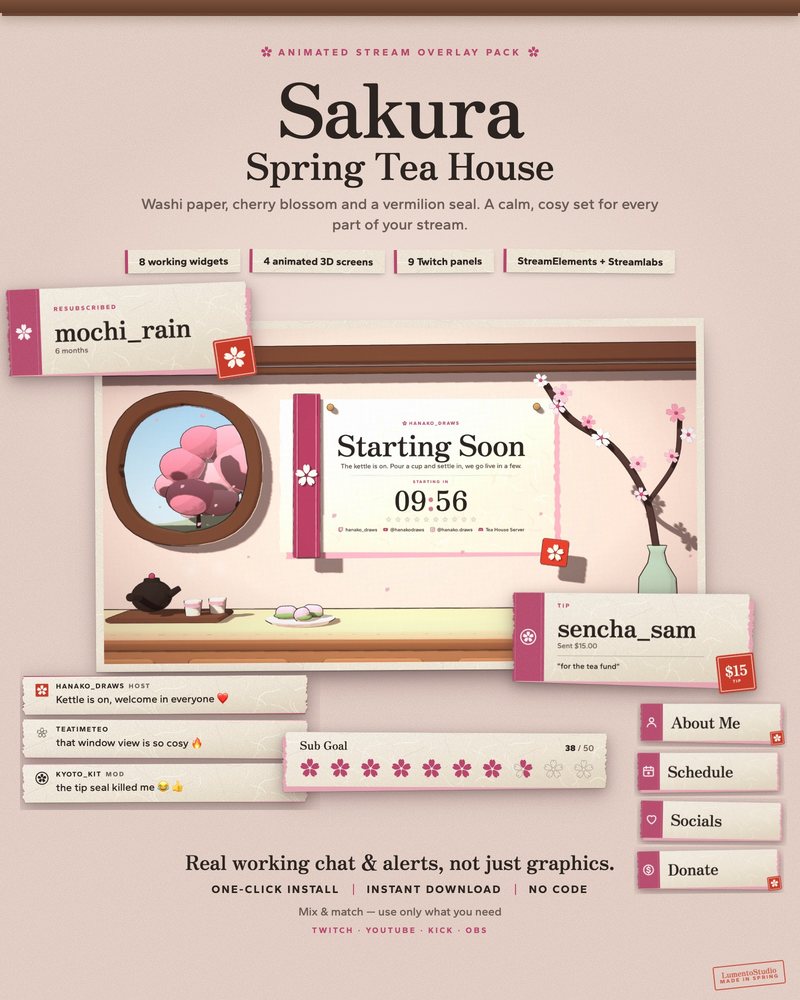
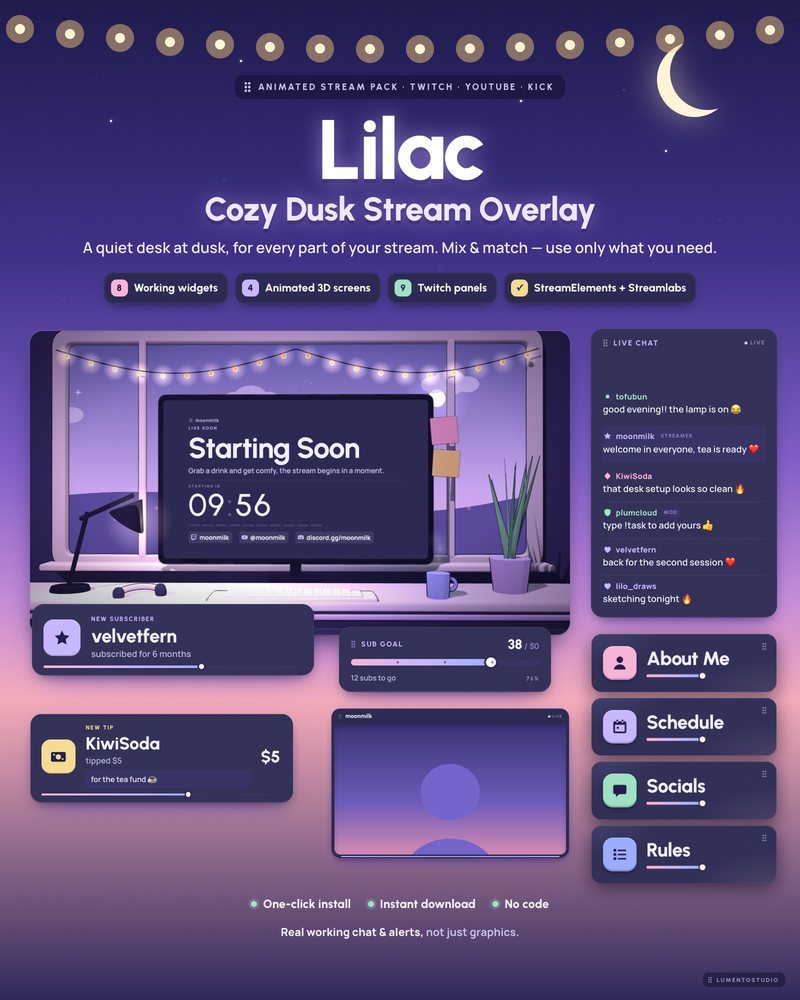
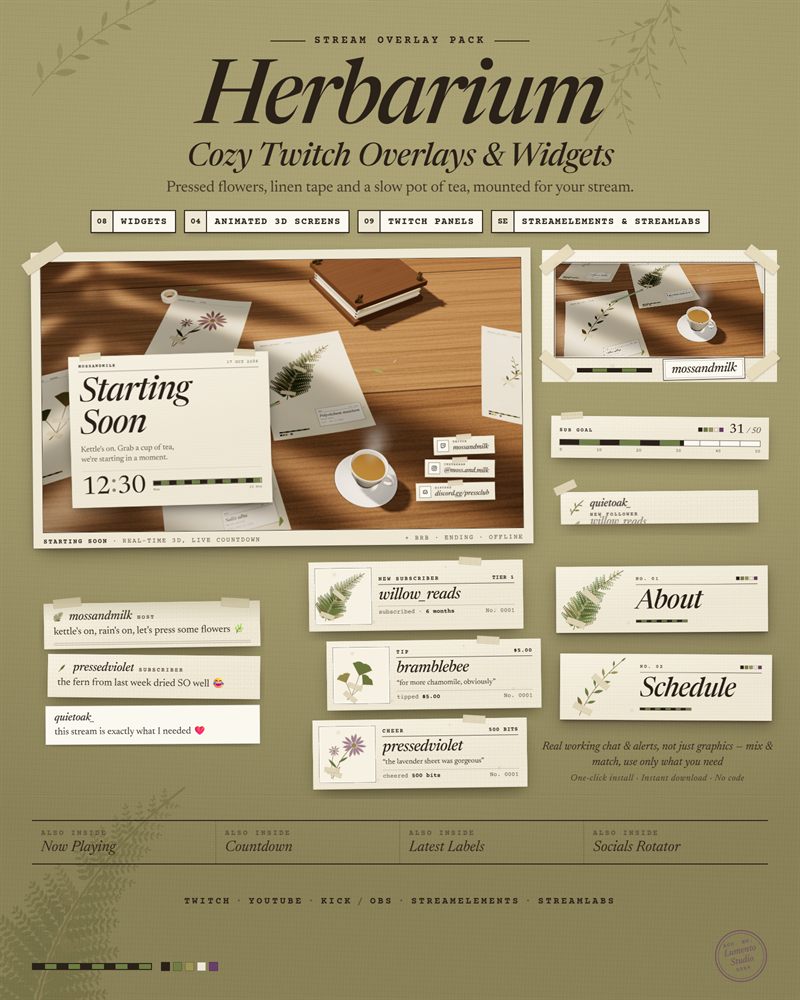
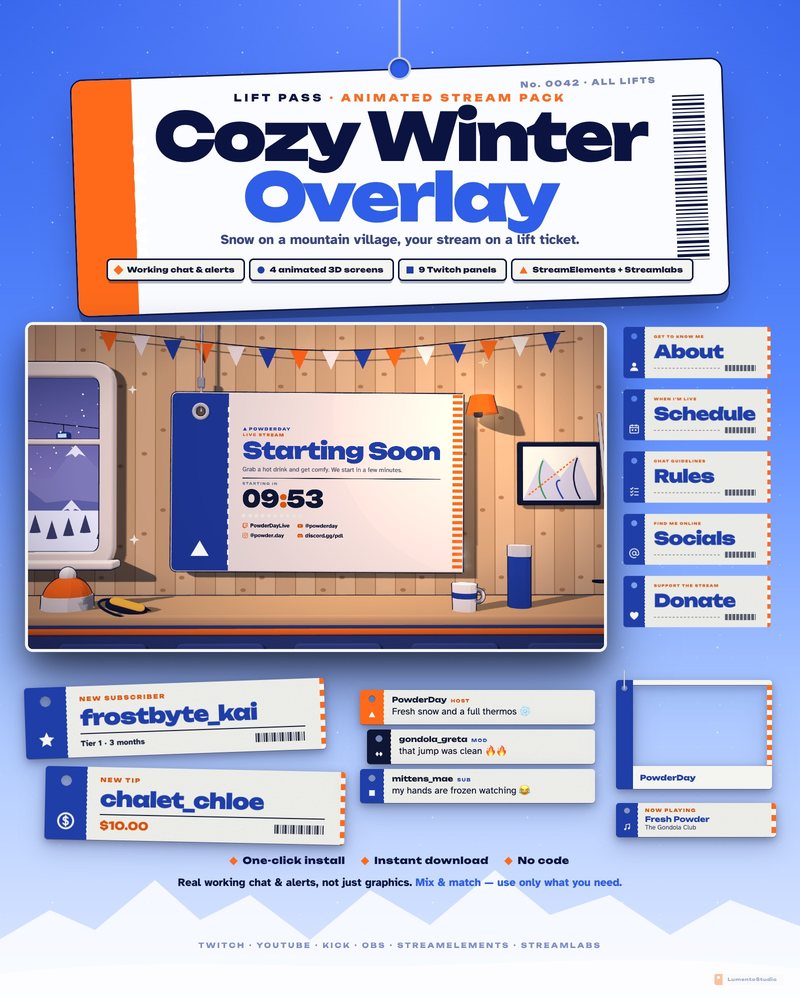
Our BRB screens
Every LumentoStudio pack with stream screens includes an animated Be Right Back screen with your own message, set in a plain settings file next to the screens. See all stream screens.