Guide · 5 steps
Twitch overlay size and OBS canvas resolution
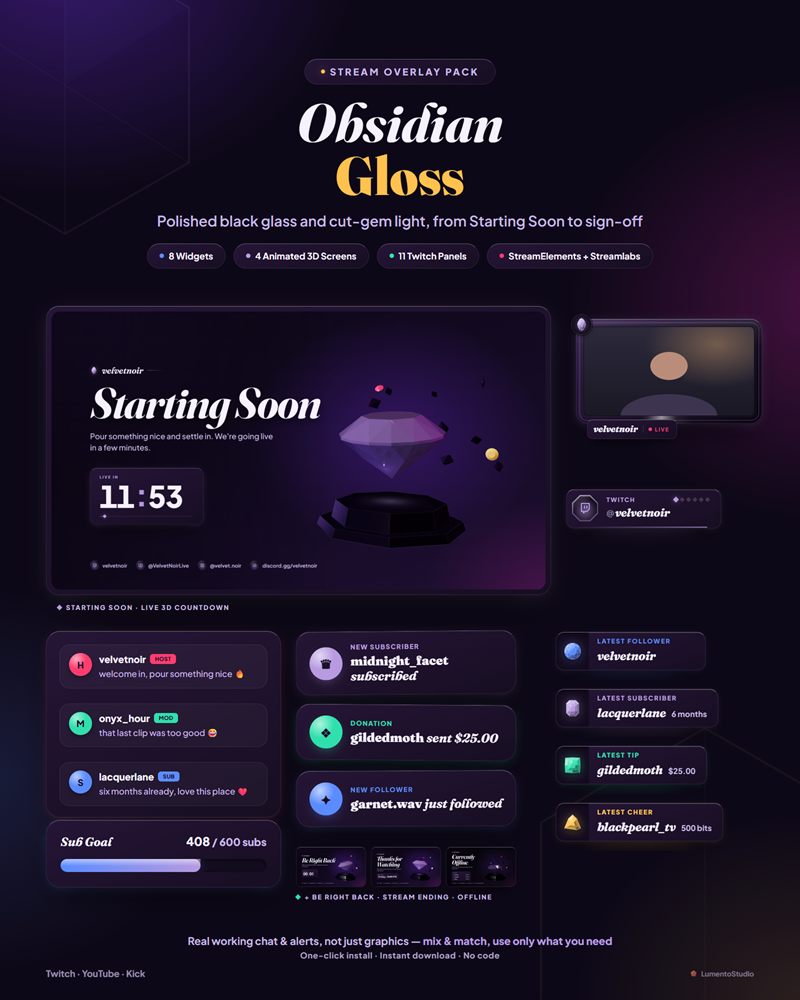
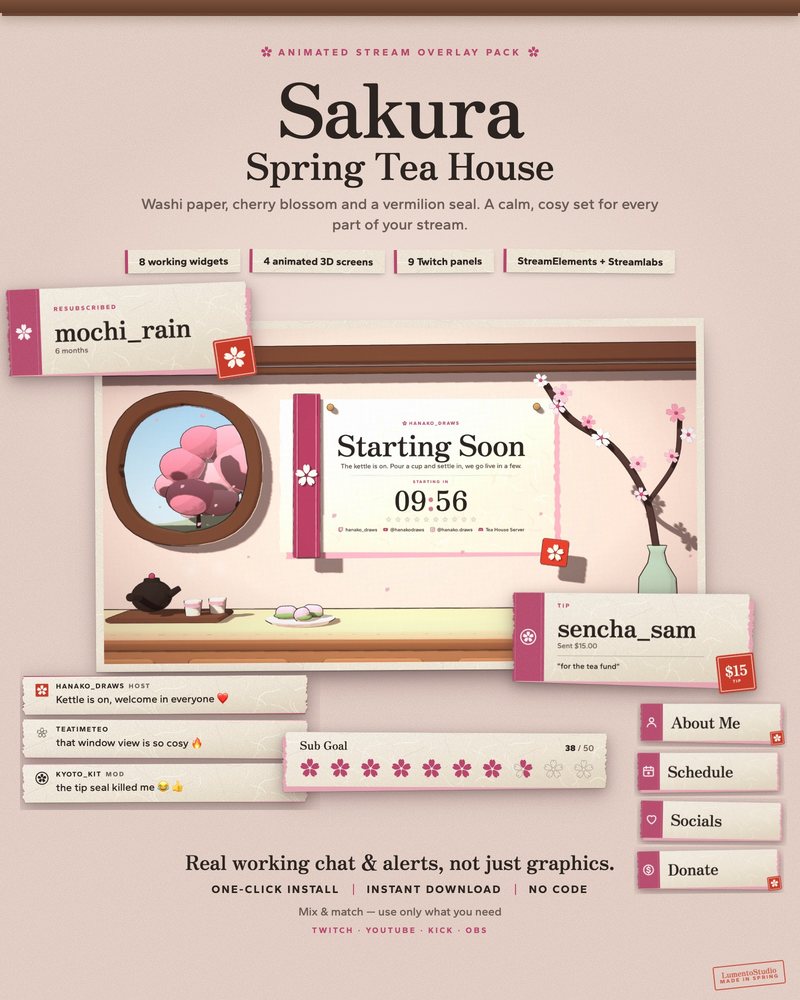
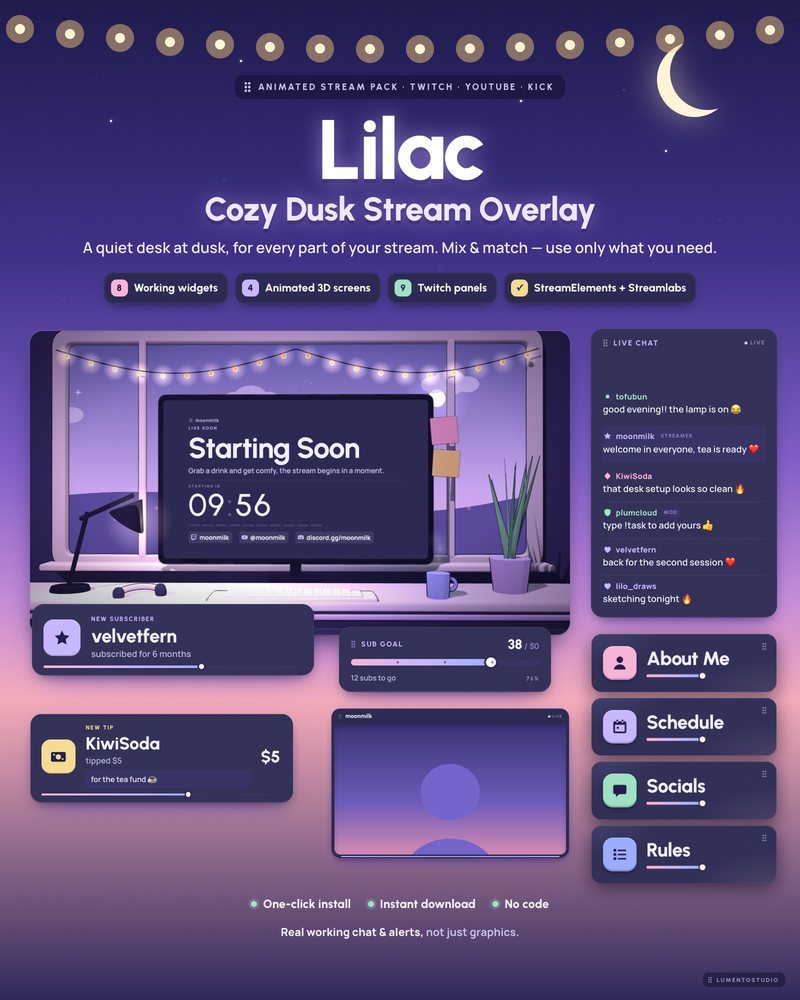
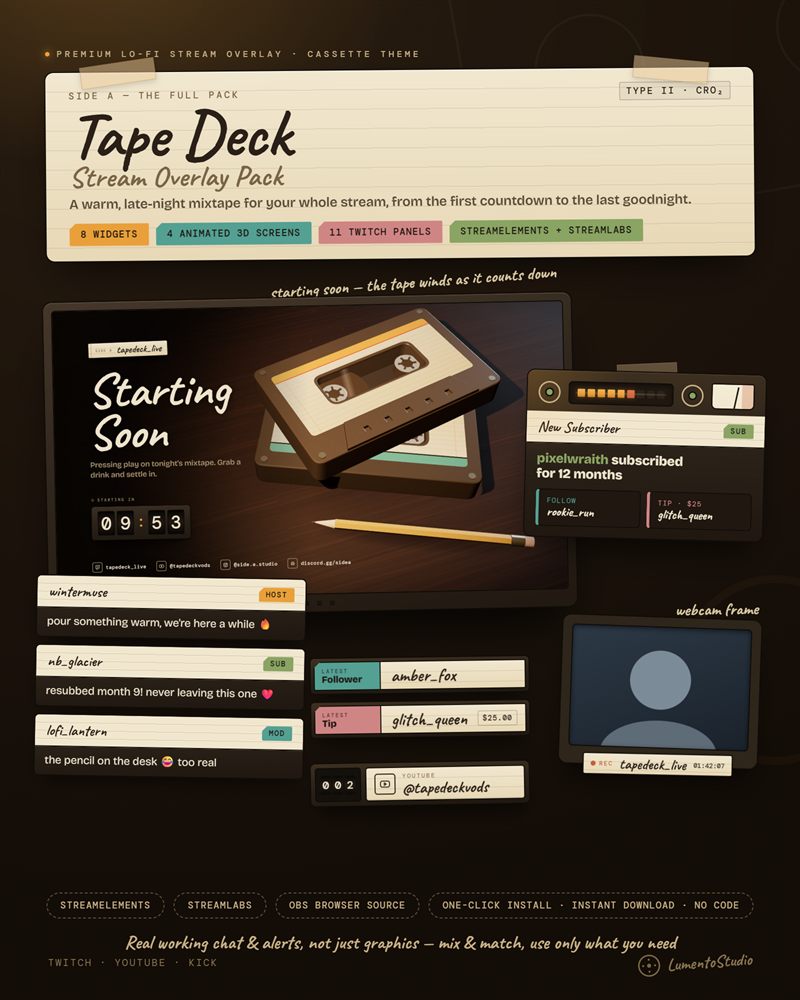
Overlays, stream screens and webcam frames are all designed for one canvas size. Get the canvas right once and everything lines up; get it wrong and widgets end up blurry, tiny or cut off.
Short answer
Build your layout on a 1920×1080 canvas (OBS Settings › Video › Base (Canvas) Resolution). If your upload speed or PC can't handle 1080p, keep the 1920×1080 canvas and lower only the Output (Scaled) Resolution to 1280×720, so your overlays keep their positions.
Canvas and output are two different settings
OBS has two resolutions under Settings › Video. The Base (Canvas) Resolution is the size of the space you arrange sources on. The Output (Scaled) Resolution is the size OBS actually sends to Twitch. Overlays care about the canvas; your internet connection cares about the output.
Almost every overlay, including ours, is made for a 1920×1080 canvas. If you set the canvas to 1920×1080 and the output to 1280×720, OBS scales the finished picture down evenly, so nothing moves out of place.
Twitch's recommended settings
| Output | Frame rate | Video bitrate |
|---|---|---|
| 1920×1080 | 60 fps | 6000 kbps |
| 1920×1080 | 30 fps | 4500 kbps |
| 1280×720 | 60 fps | 4500 kbps |
| 1280×720 | 30 fps | 3000 kbps |
These come from Twitch's broadcasting guidelines, which also recommend CBR rate control and a 2-second keyframe interval. A stable 720p stream looks better to viewers than a 1080p stream that drops frames.
Step by step
Open the video settings
In OBS, open Settings (bottom right) and choose Video.
Set the canvas to 1920×1080
Set Base (Canvas) Resolution to 1920x1080, even if your monitor is larger or smaller. Sources keep their positions as long as the canvas stays the same.
Choose the output
Set Output (Scaled) Resolution to 1920x1080 if your connection and PC can handle Twitch's 1080p bitrates, or 1280x720 if not. Pick 30 or 60 under Common FPS Values.
Match the bitrate
Under Settings › Output, set the video bitrate to match the table above for the output and frame rate you chose.
Check your overlays
Browser sources for full-screen overlays and stream screens should be 1920 wide and 1080 tall. If one looks small or cut off, open its properties and set those numbers.
Already built your scenes at 1280×720?
You can keep that canvas. Add each full-screen overlay as a 1920×1080 browser source, then right-click it and choose Transform › Fit to screen. It will be scaled down to fit your canvas.
What about a 1440p monitor?
Your monitor size doesn't need to match the canvas. Keep the canvas at 1920×1080; a Display Capture or Game Capture of a larger screen can be fitted to it with Transform › Fit to screen.