Short answer
Sign in to StreamElements with the channel you stream on, open the install link, and approve the import. The overlay appears in Streaming tools › My overlays. Open it, copy its URL with the link icon, and add that URL to OBS as a 1920×1080 Browser source.
Step by step
Sign in to StreamElements
In your browser, sign in at streamelements.com with the account you stream on. If you have more than one channel connected, switch to the right one first (top right of the dashboard), because the overlay is added to whichever channel is active.
Open the install link
Open the link from your download or install guide. Depending on the seller, you either see a confirmation prompt or a button that asks you to sign in with StreamElements and allow the overlay to be added.
Approve the import
Accept the prompt. Nothing is changed in your existing overlays; the new one is added next to them.
Find the overlay
Go to Streaming tools › My overlays. The new overlay is in the list. Open it to check each widget's settings, change your text and colors, and click Save.
Add it to OBS
Click the link icon at the top of the overlay editor to copy the overlay URL. In OBS, in the Sources panel, click +, choose Browser, give it a name and click OK. Paste the URL, set Width 1920 and Height 1080, and click OK.
Use only some of the widgets
A pack overlay usually holds every widget at once. To place them separately, add the same overlay URL as several browser sources and crop each one (hold Alt on Windows or Option on Mac and drag an edge). To drop a widget for good, delete it from the overlay in the editor and click Save.
If the import fails
- Check you are signed in to the account you meant to use, then open the link again.
- Some install links only work for one platform. If yours fails on a YouTube or Kick channel, switch StreamElements to your Twitch channel and try again, or ask the seller.
- Keep the overlay URL private. Anyone who has it can show your overlay.
Installing our packs
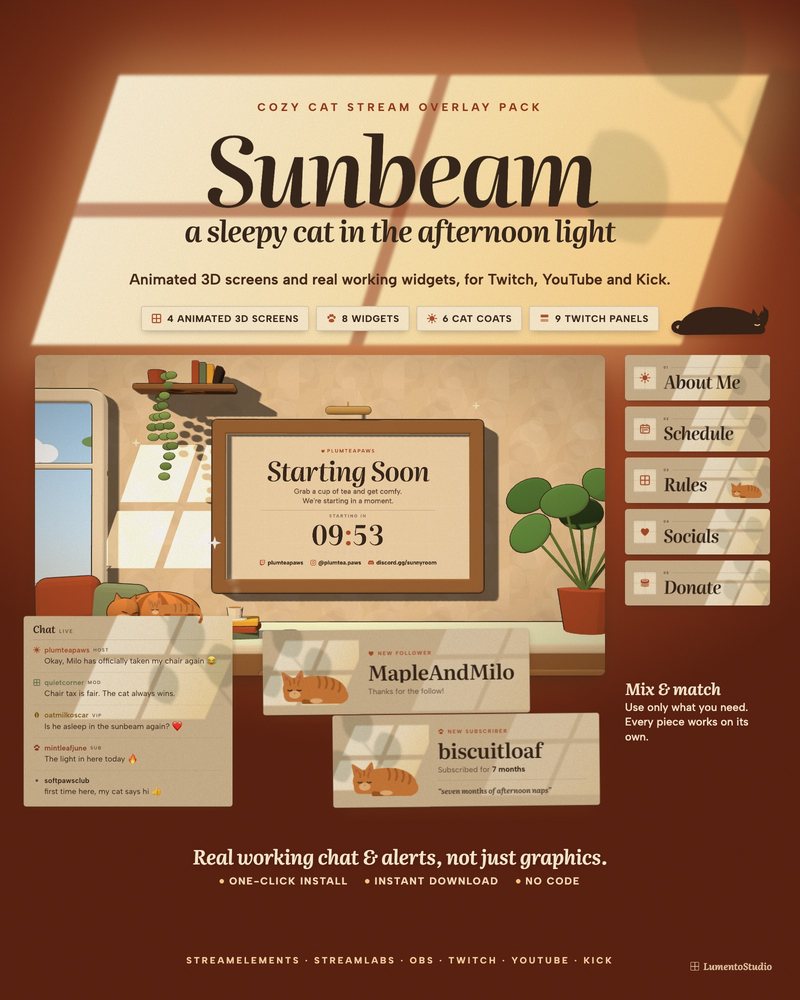
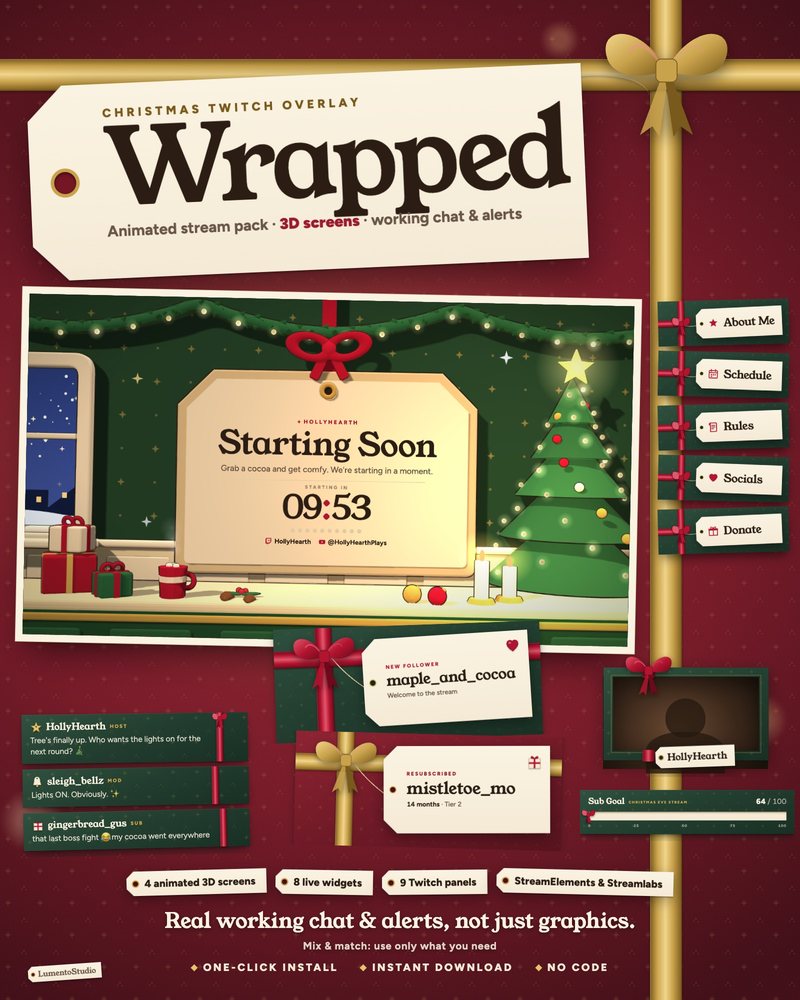
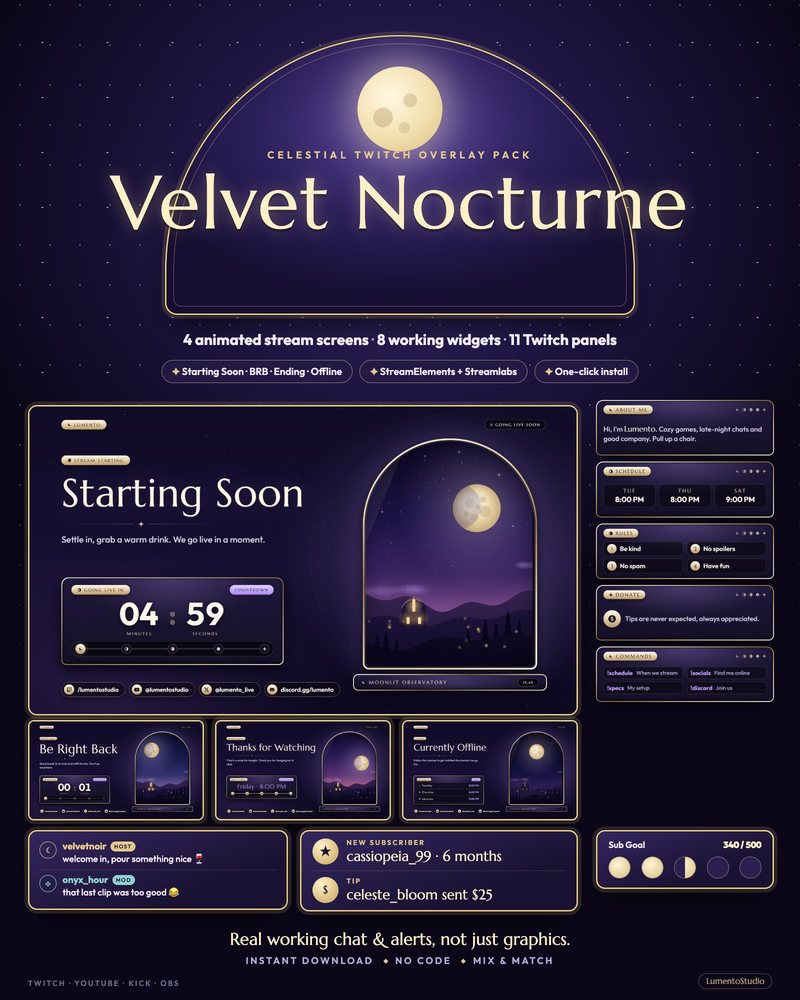
Every LumentoStudio pack with StreamElements widgets includes an install link in its Install Guide. It adds all the widgets in one overlay. Our stream screens are separate files you add to OBS directly, as in the Starting Soon guide.