Guide · 5 steps
How to show YouTube live chat on stream in OBS
People watching your clips, highlights or a stream embedded on another site never see YouTube's chat panel. Putting chat on screen keeps the conversation in the video, and it makes live viewers feel seen.
Short answer
Use a chat box widget that supports YouTube, such as Streamlabs' Chat Box: sign in with your YouTube account, copy the chat box's Widget URL and add it to OBS as a Browser source. For a quick, unstyled option, add YouTube's own chat page (youtube.com/live_chat?v= plus your video ID) as a browser source.
Step by step
Set up a chat box widget
Sign in to Streamlabs with your YouTube account and open All Widgets › Chat Box. Choose a theme, text size and how long messages stay, then save.
Copy the Widget URL
On the Chat Box page, copy the Widget URL.
Add it to OBS
In the Sources panel, click +, choose Browser, give it a name and click OK. Paste the URL. Around 400 wide and 600 tall works for a side column. Place it above your game in the Sources list.
Keep chat between scenes
In the browser source's properties, leave Shutdown source when not visible unticked. Otherwise the chat box is cleared every time you switch scenes.
Test it
Go live (an unlisted test stream works) and type a message in your own YouTube chat to check it appears.
Using YouTube's own chat page
Every YouTube live stream has a chat page at youtube.com/live_chat?v= followed by the stream's video ID (the part after watch?v= in the stream's address). Added as a browser source, it shows chat with YouTube's own interface and background, and because each live stream has its own video ID, you have to update the URL for every new stream. A chat widget avoids both problems.
Multistreaming?
Streamlabs' Chat Box can show chat from several connected platforms, including Twitch, YouTube and Kick, in one box. Check that every platform is connected to the same Streamlabs account.
Make it readable
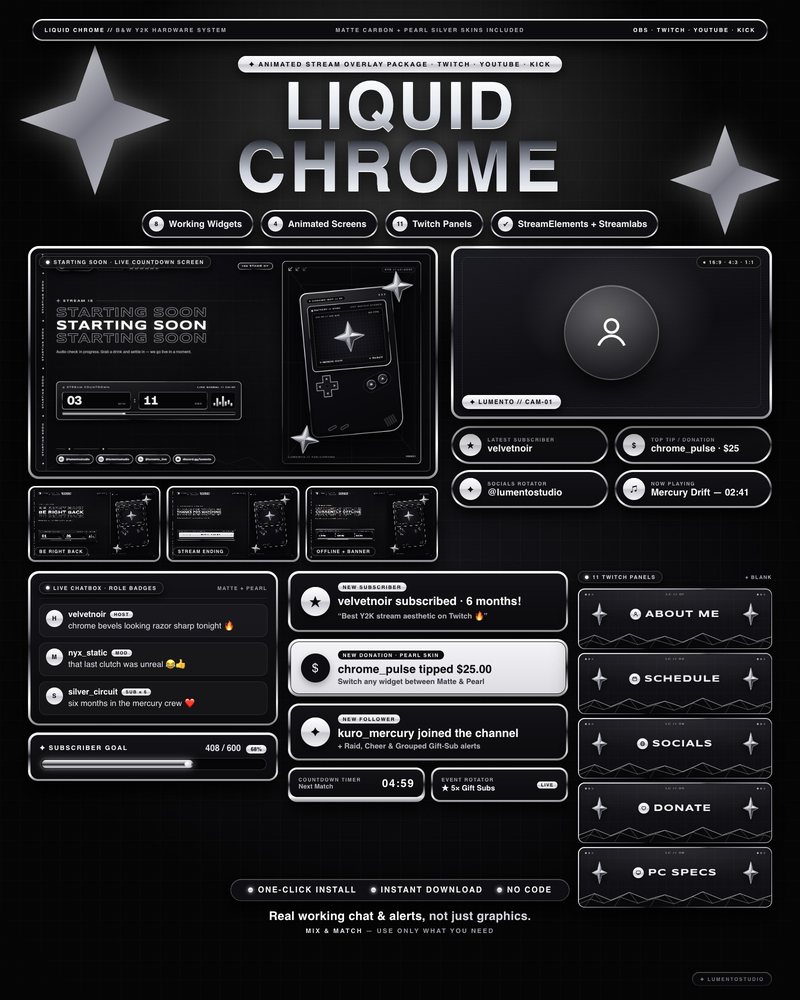
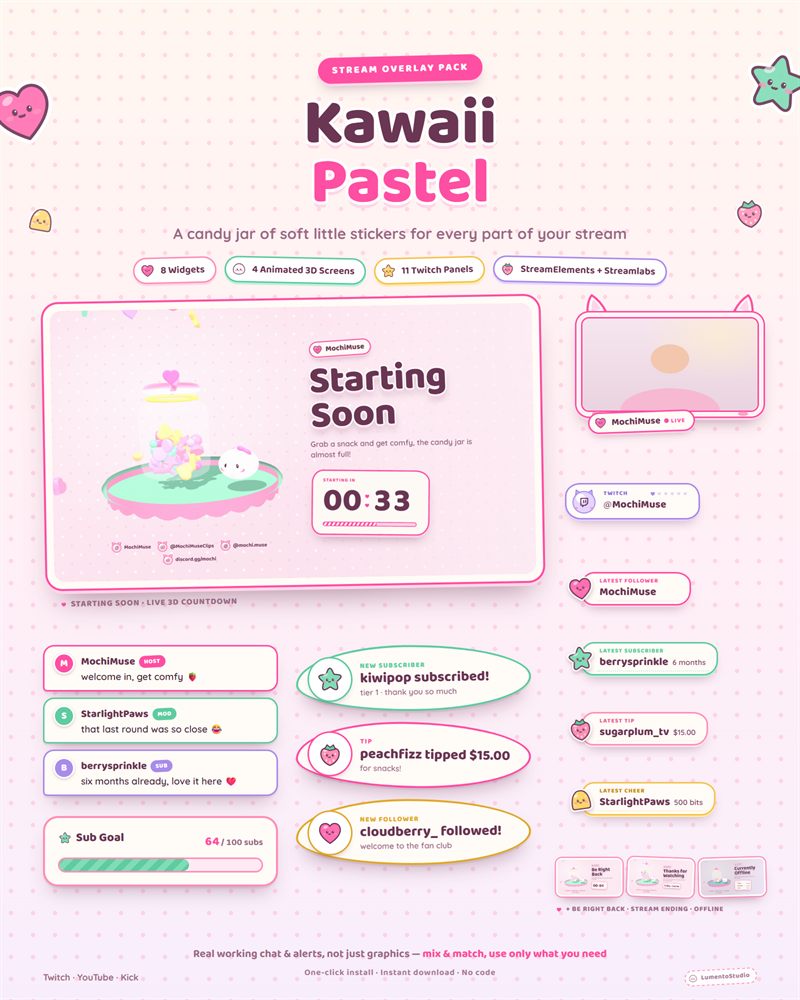
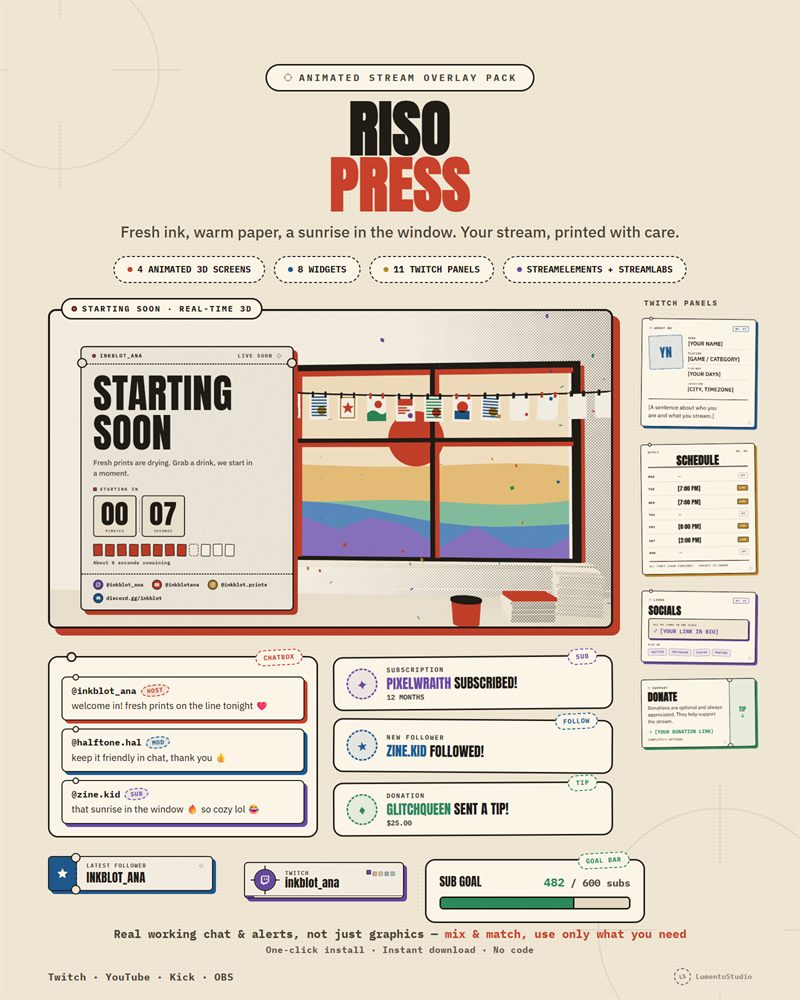
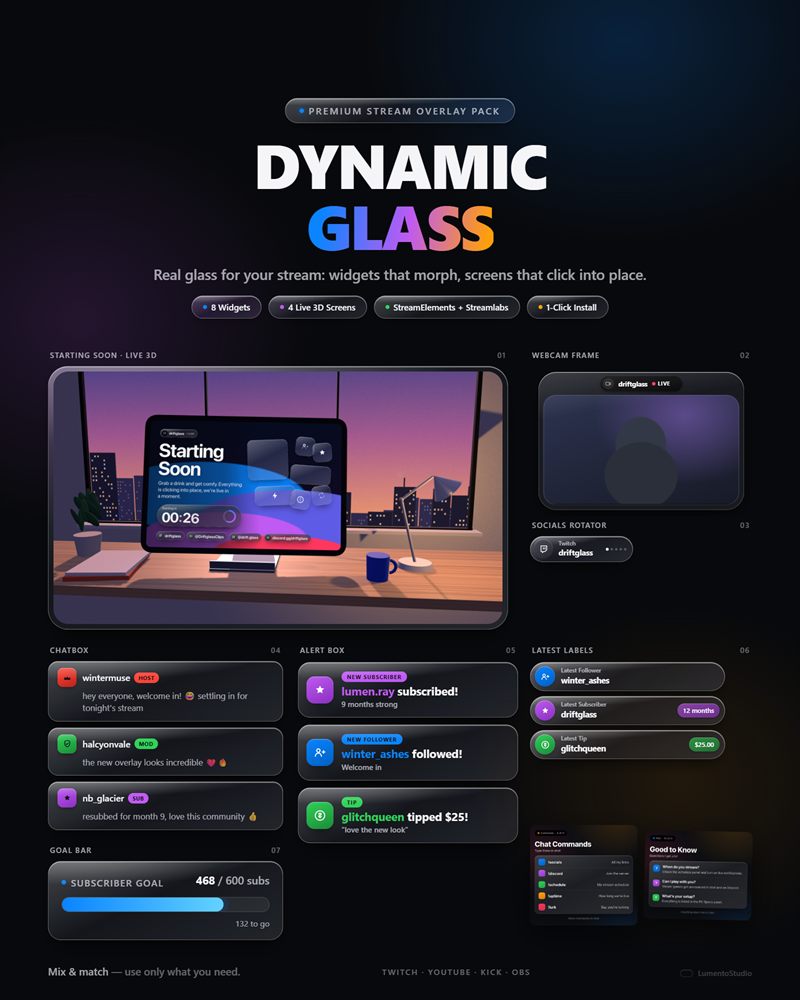
Give messages a solid background or outline and keep the font at least 20 px on a 1080p canvas. Our chat overlay guide has more tips, and the chat box overlays page lists designed chat boxes.