Short answer
Sign in at streamlabs.com with your Kick account, open the Alert Box widget, turn on the Kick alerts you want (follows, subscriptions and Kicks), copy the Widget URL, and add it to OBS as a Browser source. Use the test menu on the Alert Box page to check it.
Step by step
Sign in with Kick
Go to streamlabs.com and log in with your Kick account. Streamlabs supports Kick as a login, so there's no stream key or extra tool to set up for alerts.
Open the Alert Box
In the dashboard, open the Alert Box widget. Kick events are listed with the other platforms: follows, subscriptions and Kicks.
Style the alerts
Turn each alert type on or off and set its text, image, sound and duration. Give every alert both a show and a hide animation, otherwise an alert can get stuck on screen.
Copy the Widget URL
Copy the Alert Box's Widget URL. Keep it private and never show it on stream; anyone with it can display your alerts.
Add it to OBS
In the Sources panel, click +, choose Browser, give it a name and click OK. Paste the URL, set the size to cover the area where alerts should appear, and place the source above your game and camera in the Sources list.
Send a test
Use the test menu at the top right of the Alert Box page to fire a sample alert. It should appear in OBS within a second or two.
If alerts don't show
- Check the source is above your game in the Sources list and visible in the current scene.
- Make sure alerts aren't paused in Streamlabs, and that Custom HTML/CSS is off unless you added that code yourself.
- Try turning Enable Browser Source Hardware Acceleration off or on under Settings › Advanced › Sources, then restart OBS.
The rest of your Kick overlay
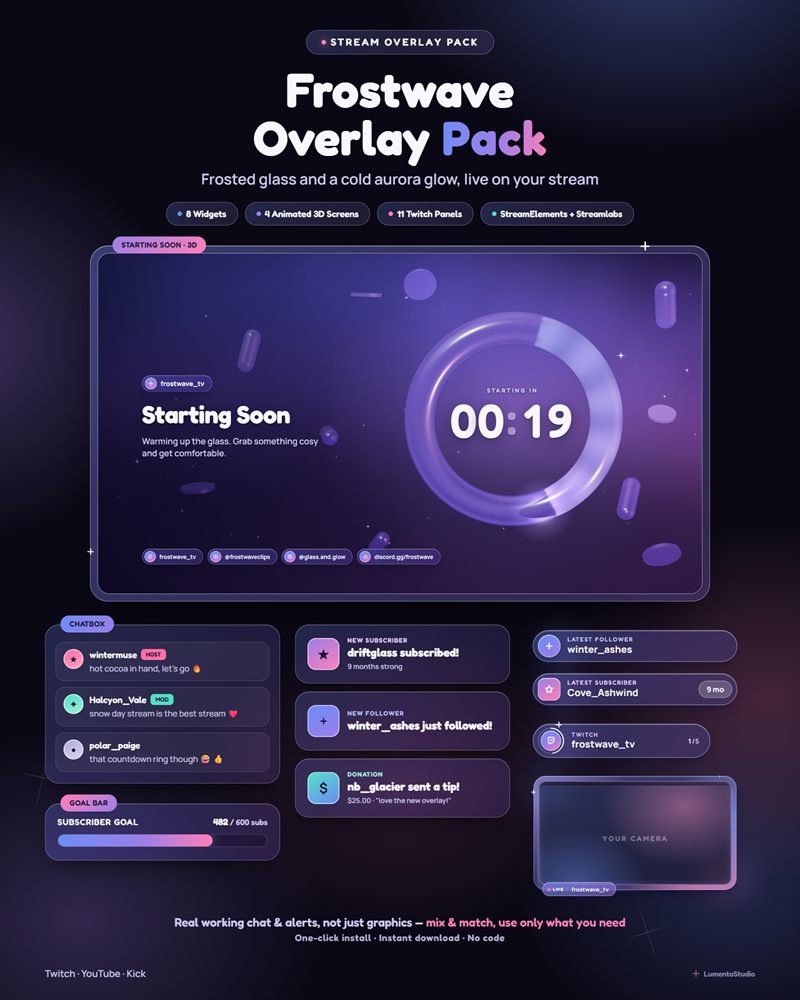
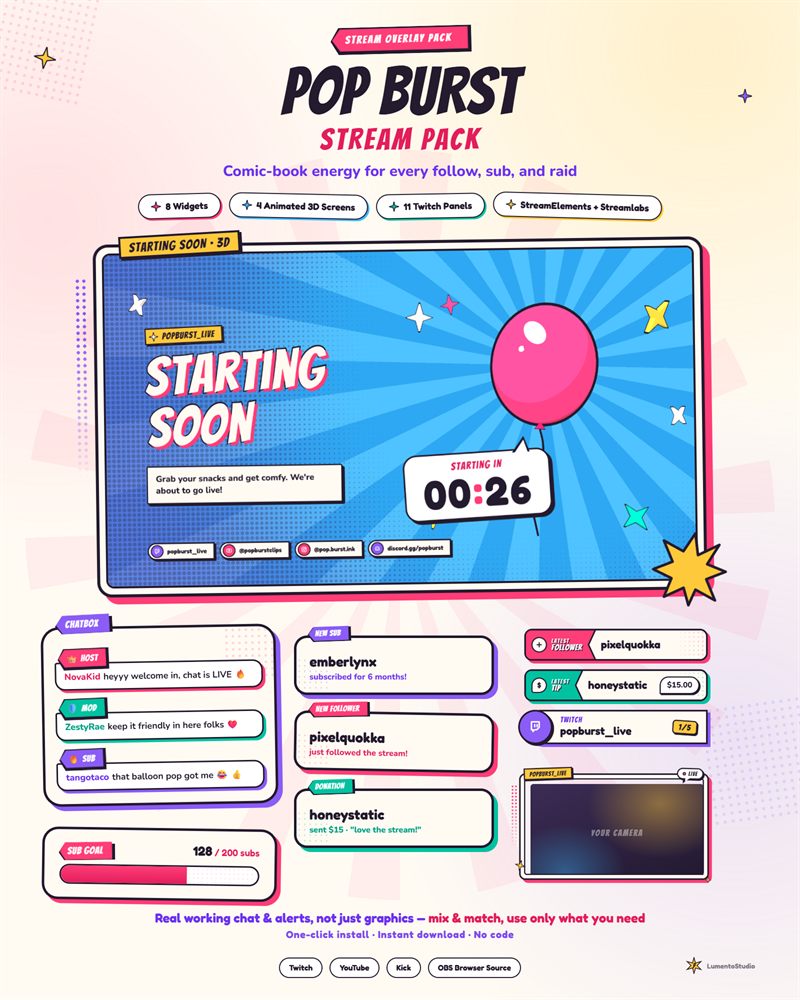
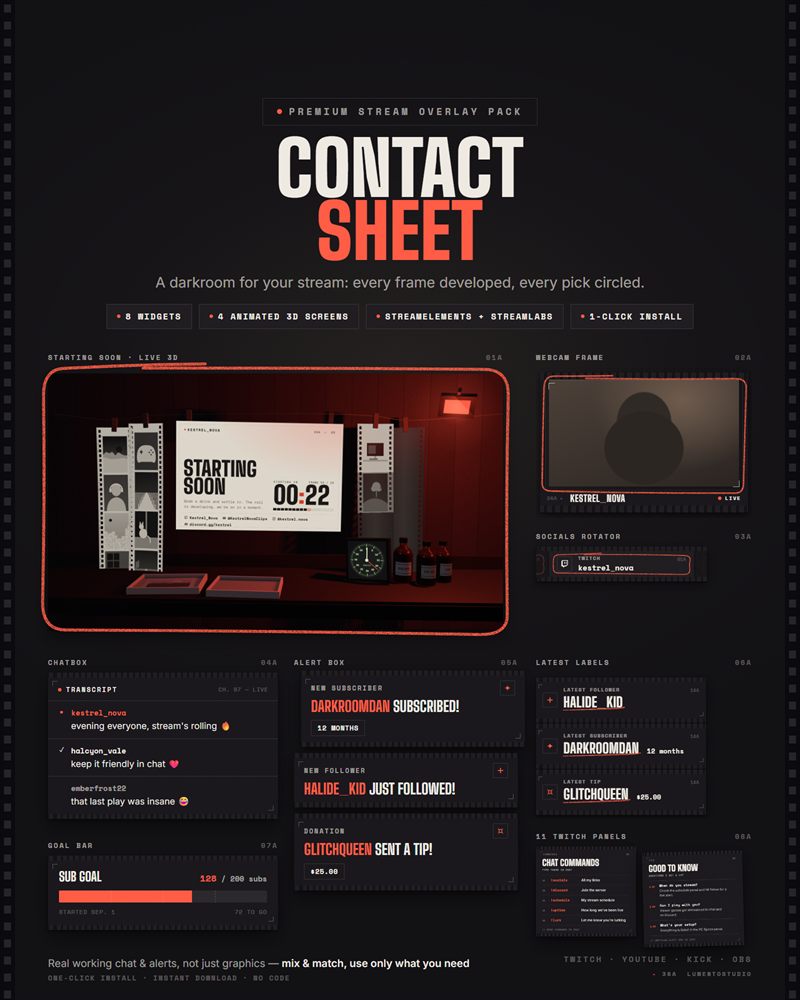
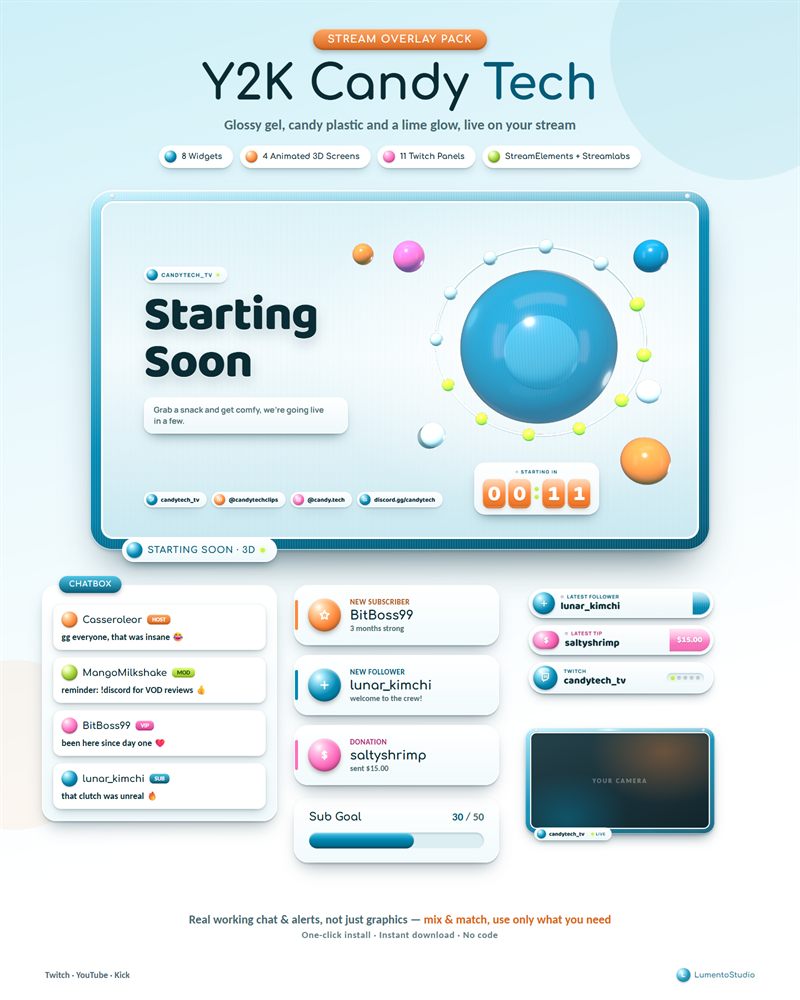
Stream screens, webcam frames and panels don't depend on the platform: our stream screens are files that run in OBS, and our panel sets work on Kick as well as Twitch. Check each product page for its platform support.